 FDM Printers


A0, A1 & A2 Engineering Printing: A Guide for Architecture Students
Keep your drawing scale, sheet size, line weights and final PDF under control before sending a plan to print.
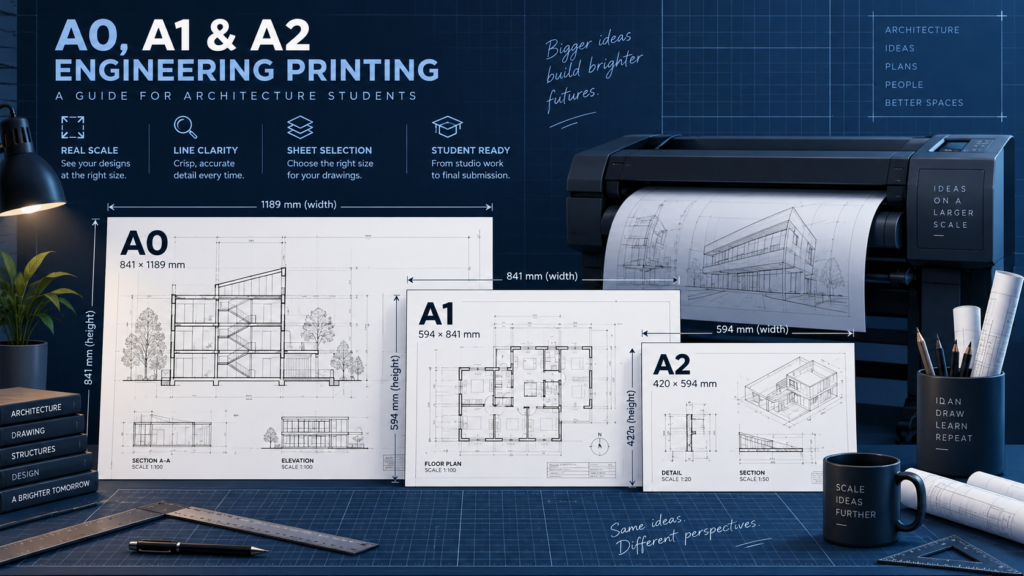
Quick checklist before sending
- Verify the sheet dimensions and drawing scale
- Check lineweights and references in the PDF
- Request actual-size printing when scale matters
Use matching units before dividing.
10,000 ÷ 100 = 100 mm.
A printed “1:100” label does not prove that the exported or printed size is correct.
Choose the sheet, then arrange the drawing
Identify the required sheet size and orientation before finalising the title block. A drawing that fits visually on screen may lose labels or margins when it is exported onto a different paper size. Keep notes and important dimensions inside the intended printable area.
| ISO A-series sheet | Dimensions in millimetres |
|---|---|
| A0 | 841 × 1189 |
| A1 | 594 × 841 |
| A2 | 420 × 594 |
| A3 | 297 × 420 |
| A4 | 210 × 297 |
Portrait and landscape exchange the width and height. For a custom-width or extra-long drawing, state both finished dimensions; do not describe it only as “A1 long”.
Protect the drawing scale
For a normal AutoCAD layout workflow, draw at full size in model space, set the viewports to the required scale and export the paper-space layout at 1:1. Check the unit convention: a model drawn in metres needs the correct model-to-paper conversion. Do not use Fit to paper for a drawing that must retain a measured scale.
Preview linework, not only the overall layout
Use the appropriate CTB or STB plot style and check the exported result. Inspect fine lines, hatches, dimensions, dotted lines and any pale colours used for construction references. Turn off layers that should not print. A scale label does not prove that the drawing was exported at that scale.
Check the actual PDF
Open the exported PDF, confirm its page dimensions and inspect every sheet. Verify that text, raster underlays and references are present. A quick paper proof of a critical detail is useful before committing to a full presentation set. When printing the final sheet, use Actual size or 100% where scale must be preserved.
Make the handoff unambiguous
Use filenames such as Project_Plan-A01_A1_1-100_REV03.pdf. In the order message, specify copies, colour or black and white, paper preference, required folding and deadline. List any sheets with a different size or scale. Send one clearly identified final revision rather than several attachments all called “final”.
For printing, send a PDF already arranged on the correct sheet. Add: “Print at actual size; do not fit or rescale.” Send an editable drawing package separately only when adjustments are needed.
Follow the illustrated AutoCAD SCALE and Reference guide and see SHARK printing and copy services.
Technical references
Software interface wording may vary by version. Production settings must match the actual job.