 FDM Printers


Prepare Print-and-Cut Files in Illustrator: Two Separate Layers
Keep printed artwork and cutting instructions separate while preserving their exact alignment.
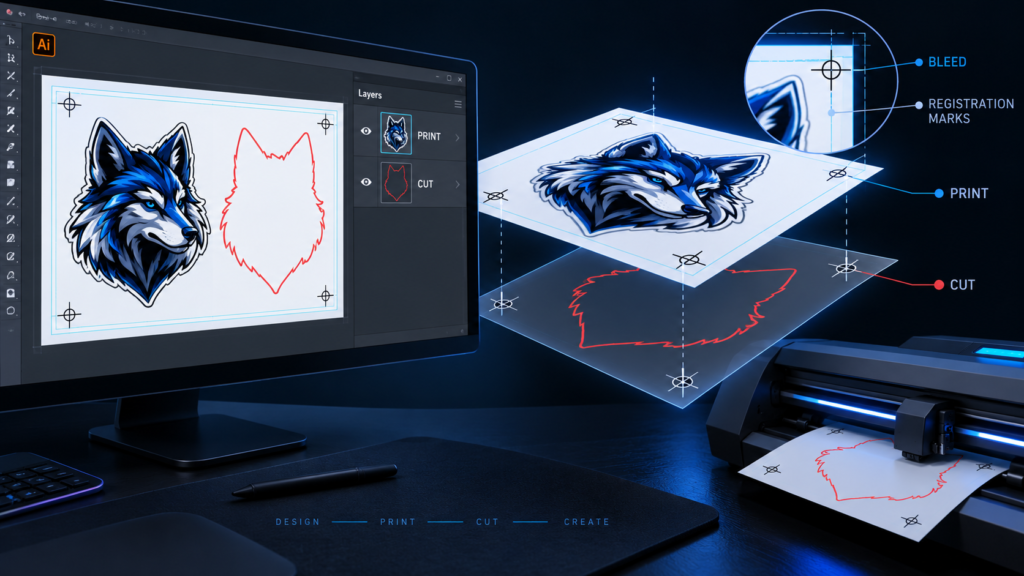
Quick checklist before sending
- Keep CUT above PRINT and retain alignment
- Use clean vector contours with no fill or effects
- Confirm the cut swatch, bleed and export workflow
Background extends beyond the cut; important content stays inside.
Closed vector contour, no fill, no effect.
Artwork, images and intended printed background.
Confirm the recognised spot colour and export settings with SHARK.
Diagram colours are explanatory. They are not a prescribed cutting swatch or an exact bleed measurement.
What the two layers do
Start with a production copy at the agreed final size. Use two clearly named layers: PRINT for what will be printed, and CUT for the intended vector cutting boundaries. Keep the cut layer above the artwork so its geometry is easy to inspect.
1. Prepare the printed artwork
Resolve missing image links and embed the images or package them with the AI document. Outline text in a production copy while preserving the editable original. Check the image resolution at the final size, not only at a reduced working scale. Remove reference drawings and notes that should not print.
2. Draw a clean cutting boundary
Use a deliberate vector path for each intended contour. Give it no fill and a simple stroke for inspection. Close the outer perimeter where a closed sticker shape is required. Remove duplicate paths, stray points, unnecessary overlaps and tiny loops. Keep all holes that are actually required and remove accidental internal contours.
Do not apply drop shadows, opacity effects or decorative brushes to the cutting path. Do not expand a simple contour stroke into a filled outline: the two sides can become two different boundaries. Outlining text and expanding a cutting stroke are not the same operation.
3. Confirm the cut-colour convention
Some RIP workflows recognise a specifically named spot colour. For example, Roland VersaWorks uses the case-sensitive name CutContour. This is an example, not a universal setting. Ask SHARK for the exact swatch name, stroke treatment and export preset appropriate to the job; do not assume a convention from another production system will work unchanged.
A magenta line is not automatically a cutting instruction. The production software must recognise it correctly. Keep the cut colour as the required spot colour, avoid effects on it and have its interpretation checked before output.
4. Bleed and safety margin
Where artwork reaches the edge, extend the printed background beyond the cut by the amount agreed with SHARK. Keep text and logos safely inside the cut. Bleed is outside the boundary; the safety margin is inside it. Use the actual product specification rather than assuming one allowance fits every material and size.
5. Keep registration consistent
Do not independently scale or move the cut layer after approving the print artwork. Keep the required layers visible in the production export. Do not add guessed cutter registration marks or arrange a large production sheet unless SHARK supplies that workflow. These marks and the production layout need to match the equipment.
6. State the finished product
Tell SHARK whether the job should remain on a backing sheet or be supplied as separate pieces. Identify any internal cutouts and the required quantity. A kiss-cut instruction and a through-cut instruction are different production requests, even when the visible artwork is identical.
Send one aligned AI file containing both PRINT and CUT layers, the required PDF export, and a small visual reference. Include final dimensions, material, quantity and finishing. Ask for contour verification before the full batch.
Read the Illustrator preparation guide and vinyl cutting tips, or contact SHARK signage and branding.
Technical references
Software interface wording may vary by version. Production settings must match the actual job.