 FDM Printers


Prepare Illustrator Files: Outlines, Images & Unwanted Print Boxes
Avoid missing fonts and images, and troubleshoot rectangles or halos around transparent artwork.
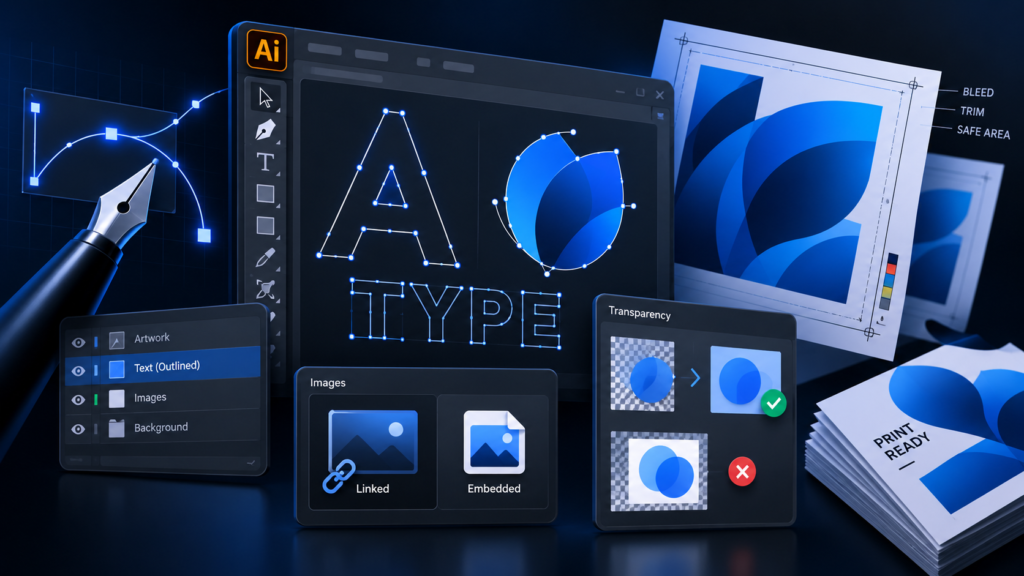
Quick checklist before sending
- Keep an editable original before outlining
- Embed images or package all linked assets
- Inspect transparency and the exported PDF
A crop or clipping mask does not remove the background inside the visible area.
Confirm source transparency, then inspect the combined artwork and PDF.
This example explains an actual opaque background. Ghost patches from transparency or spot-colour output are a different issue.
1. Keep an editable master
Save the original AI file before preparing a separate production copy. Set the artboard to the agreed finished size, remove unused objects and identify the correct version. Keep a PDF reference showing exactly what the finished artwork should look like.
2. Outline text in the production copy
Select the required text and use Type → Create Outlines. The lettering becomes vector geometry instead of editable text. Inspect the result, especially Arabic connections, dots, punctuation and unusual effects. Preserve the original with live text for future changes. Outlining is not a substitute for proofreading.
For an exported PDF, correctly embedded fonts can also preserve text appearance. For an editable AI handoff without fonts, send an outlined production copy. Do not delete the only editable version.
3. Make sure every placed image travels with the file
Open Window → Links and resolve missing or modified links. Choose one of these handoff methods:
- Embed: select the linked images and use the Links panel menu's Embed command. Verify their status after saving.
- Package: use
File → Packageto collect the AI document and linked graphics into an organised folder. - Save with linked files included: where your version's save dialog offers this option, enable it and reopen the saved file to check the result. Do not assume merely saving an AI file included every image.
Embedding protects against missing external files; it does not automatically improve image resolution or fix transparency.
4. Why can a PNG, cropped photo or effect print with a box?
Not every PNG or clipping mask causes this. First distinguish three different situations:
| What you see | What to investigate |
|---|---|
| A solid white or coloured rectangle | The image may contain an actual opaque background. Cropping does not remove those pixels. |
| A pale patch or ghost border around a shadow | Transparency, colour blending, spot colours or the output workflow may be involved. |
| A very fine seam visible only at some zoom levels | It may be a display artefact. Check the PDF and a proof before changing the artwork. |
5. Check the source, mask and output
- Turn on
View → Show Transparency Grid. Confirm whether the background is actually transparent. - Inspect the image and its clipping or opacity mask. A clipping mask limits visibility; it does not erase an opaque background inside the visible area.
- Review
View → Overprint Preview, especially where shadows or transparency meet spot-colour artwork. - Check document and placed-image colour handling with SHARK. Do not convert spot colours blindly when some are production instructions.
- Export the intended print PDF and inspect that PDF independently, not only the AI screen view.
- Request a proof of the affected area when the result remains uncertain.
This can reduce text quality and destroy vector cutting paths. Flattening or rasterising a specific problematic area may be appropriate in a separate production copy, but only with the output workflow and required resolution understood.
6. Choose the PDF workflow deliberately
PDF/X-4 can preserve live transparency; other output workflows may require controlled flattening. The correct choice depends on the production system. Ask SHARK which preset and colour settings apply to the job. A file that needs print-and-cut also has to retain its recognised vector cutting paths.
Send the production PDF plus the outlined AI with embedded images, or a complete package when editing is required. Include a screenshot or PDF reference identifying any area where you have seen a box, halo or unexpected colour.
What to send SHARK
Include final dimensions, quantity, intended material, finishing and the one approved visual reference. For print-and-cut, follow the two-layer guide as well; ordinary artwork layers are not automatically cutting instructions.
Explore SHARK printing services or request a quotation.
Technical references
Software interface wording may vary by version. Production settings must match the actual job.