 FDM Printers


Prepare Photoshop Files for Print: Size, Resolution & Colour
Check what the image can deliver at its actual printing size, then save a clean production copy.
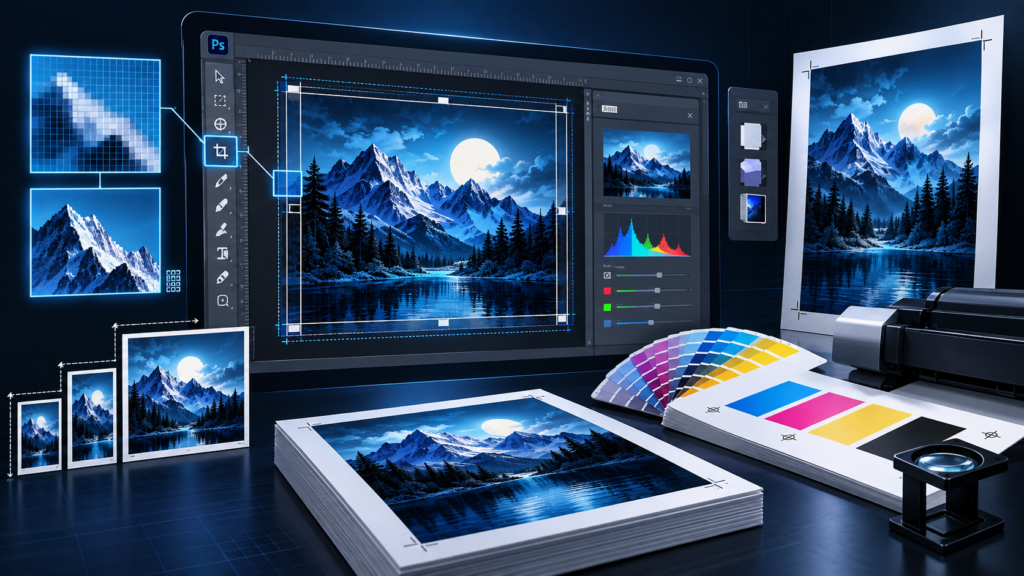
Quick checklist before sending
- Check pixels and physical print dimensions together
- Confirm the intended crop and colour handling
- Keep the layered original separate
3,000 pixels ÷ 10 inches = 300 ppi.
3,000 pixels ÷ 20 inches = 150 ppi.
Without resampling, spreading the same pixels over twice the width halves the pixels per inch.
1. Start with the original image
Use the highest-quality original photograph or scan available. Avoid rebuilding a poster from a small website image or a messaging preview when the original file exists. Keep the layered PSD master, with editable text and retouching, separate from the file prepared for production.
2. Check size and resolution together
Open Image → Image Size. Review pixel dimensions, physical dimensions and resolution together. With resampling disabled, the existing pixels are redistributed over the requested print size. With resampling enabled, the application adds or removes pixels; increasing the number does not guarantee recovery of genuine original detail.
Print width in inches = pixel width ÷ pixels per inch
3000 pixels ÷ 300 ppi = 10 inches = 25.4 cm
3000 pixels ÷ 150 ppi = 20 inches = 50.8 cm
A 300 ppi setting is a useful starting discussion for many close-viewed prints, not a universal requirement for every job. For a large display viewed from farther away, ask SHARK to assess the final size and a representative detail. Do not confuse image ppi with the printer's advertised dpi.
3. Crop to the required proportions
Confirm the width-to-height ratio before final retouching. A photograph with different proportions from the requested print must be cropped, extended or printed with margins. Show the intended crop in your reference and keep faces, logos and important text away from trim or wrap areas.
4. Keep transparency intentional
A white background and a transparent background are different instructions. Check the layer structure and edge quality around cut-out subjects. If a transparent image will be placed into Illustrator, inspect the final composite and exported PDF as well. An unwanted box is not fixed merely by increasing the resolution.
5. Agree on colour handling
Ask SHARK which profile and colour-space handoff suits the selected output. Keep the original colour information and avoid repeated conversions. A phone or uncalibrated monitor is not a reliable contract proof for a colour-critical print. Where matching matters, request a sample on the actual material.
6. Prepare the production copy
Save the format agreed for the job, such as a suitable PDF or TIFF, while retaining the editable master. Check the saved file's dimensions, crop, visibility of layers and colour profile. Do not flatten the only master. When artwork also needs a cutting outline, place the print image into the approved vector workflow rather than turning the entire cut file into pixels.
Include the final dimensions and tell us whether the file is already prepared at full size. Add a small reference showing the required crop. Sending “300 dpi” without the physical dimensions is not a complete print instruction.
What to send SHARK
Send the agreed production file, dimensions, copies, material and finishing instructions. Supply the layered PSD only when editing is requested, together with necessary assets and font information. Identify exactly which elements SHARK is authorised to change.
Read large-format artwork preparation or Illustrator transparency troubleshooting, and visit SHARK printing services.
Technical references
Software interface wording may vary by version. Production settings must match the actual job.